 ShipGeek Docs
Connecting Your Store
Send us your store domain, let us build your custom app, and install it in Shopify. No ShipGeek account setup needed first — installing the app is what gets you in.
What we need from you
One thing, to start:
- Send us your Shopify store domain — copy it straight from your admin URL. This is the URL from your Shopify home page.
admin.shopify.com/store/testgeek1Your store domain is the part highlighted in the URL above (testgeek1).
We use your store domain to prepare a custom app for you in the Shopify Partner Dashboard. That's all we need from you on this step — you don't need to register with ShipGeek beforehand.
While we build your app
ShipGeek connects to Shopify through a custom app rather than a one-size-fits-all integration. Behind the scenes, we:
Create your custom app
Built in our Shopify Partner account, specifically for your store.
Configure it for you
Scoped and set up before it ever reaches you.
Generate your install link
A unique, one-time link to install the app on your store.
Installing the app
We email you the install link once your app is ready. From there it's three steps:
-
Log into Shopify first
Be logged into your Shopify admin in the same browser you'll open the email from, before clicking the link.
Easiest way: open your Shopify admin in one tab and your email in another, in the same browser window, then click the link from there. That's the only prerequisite — there's nothing to log into on the ShipGeek side.
-
Install the app
The link prompts you to install. Click Install App and wait for it to finish.
Before it completes, Shopify shows a screen listing the permissions ShipGeek is requesting — see Permissions ShipGeek requests below for exactly what those mean.
-
Open ShipGeek from Shopify
Once it's installed, open ShipGeek from the Apps list in your Shopify admin — that's your Supplier Board. You can also sign in directly at
shipgeek.app/loginfrom then on; see below.To confirm the connection took, head to Settings → Store Integration in ShipGeek — your shop shows up there with a Connected badge.
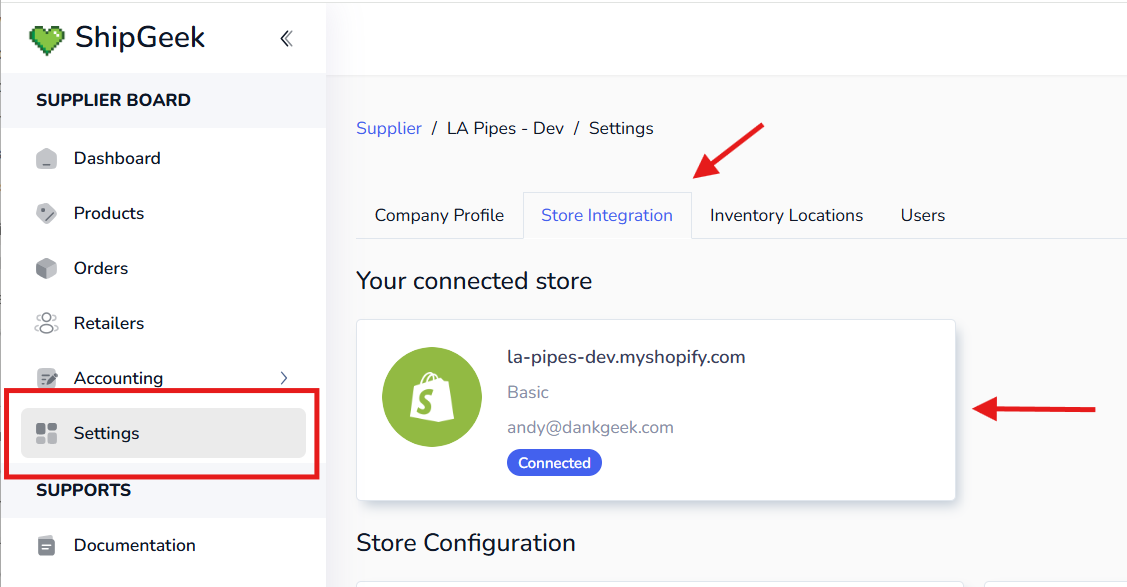
Settings → Store Integration — your connected store shows up here with a Connected badge.
Once connected, your store's data starts syncing to ShipGeek automatically — no further setup needed on this step. Your install link doesn't expire, so there's no rush to use it right away.
Getting back into ShipGeek later
Once the app is installed, there are two ways in, and they get you to the same place:
- Open ShipGeek from the Apps list in your Shopify admin.
- Sign in directly at
shipgeek.app/login— with Google, or with your email and password.
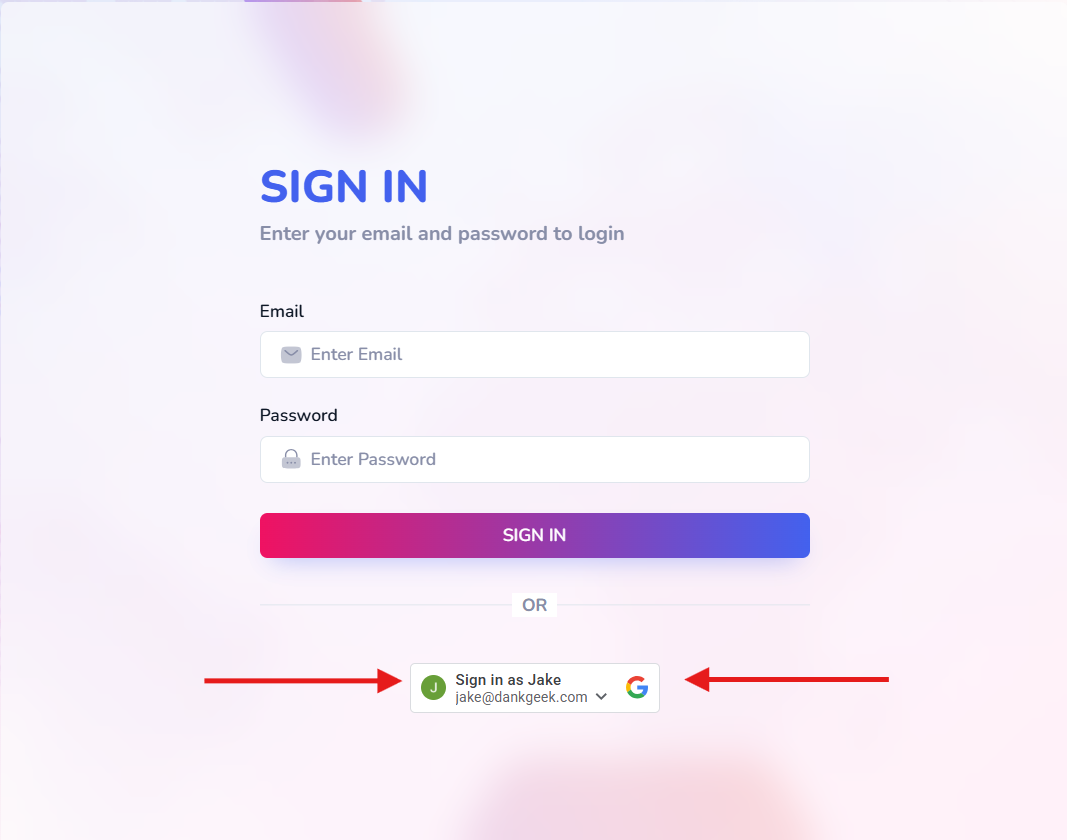
shipgeek.app/login.Permissions ShipGeek requests
Before install finishes, Shopify shows a screen listing the permissions (API scopes) ShipGeek is asking for. Collectively, they give ShipGeek broad access to orders and fulfillment operations, but limited ability to modify products or inventory. Here's exactly what each group covers.
What the Shopify install screen actually says
The screen a supplier sees mid-install doesn't show the technical scope names below — it shows Shopify's own summary, grouped into three collapsed categories at first glance:
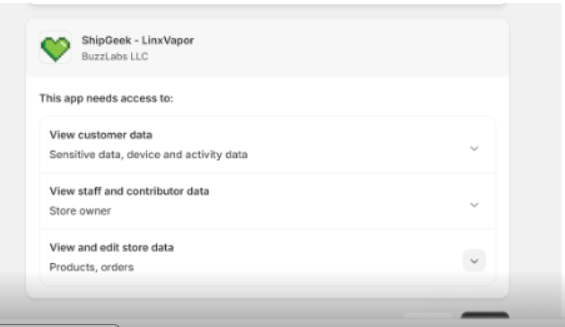
Each category has a chevron that expands into the real detail. Here's the full expanded view:
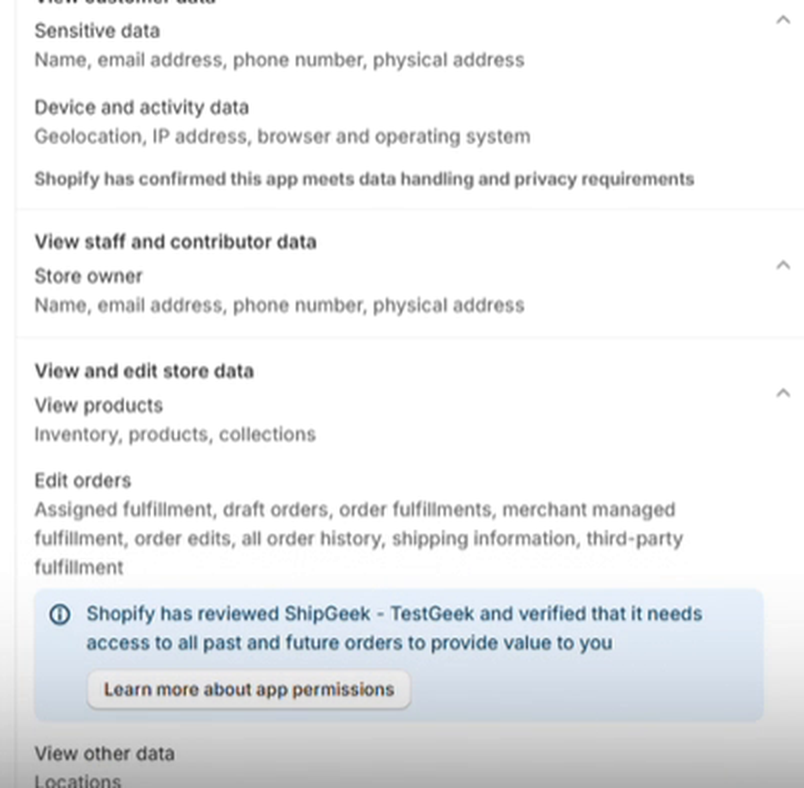
Expanded, it's clear the "edit" part of "View and edit store data" applies only to orders — products get a separate, view-only line. Here's what each category means in plain terms:
View customer data — Sensitive data (name, email, phone, physical address); Device and activity data (geolocation, IP address, browser and operating system). Fulfilling an order requires the customer's shipping name and address — that's the part ShipGeek actually uses. "Device and activity data" is Shopify's standard disclosure — it appears alongside any customer/order access regardless of the app, and ShipGeek doesn't read geolocation, IP, or browser data. Shopify's own note on this screen: "Shopify has confirmed this app meets data handling and privacy requirements."
View staff and contributor data — Store owner (name, email, phone, physical address). Shopify includes this automatically, and support contact is the only thing it's used for — in practice just the name, email, and address needed to reach you.
View and edit store data splits into two distinct lines once expanded:
- View products — inventory, products, collections. View only. This matches SKUs and keeps the catalog in sync; ShipGeek cannot create, edit, publish, or delete products (confirmed by the granular scopes below —
write_productsisn't requested). - Edit orders — assigned fulfillment, draft orders, order fulfillments, merchant-managed fulfillment, order edits, all order history, shipping information, third-party fulfillment. This is the actual edit access, and it's order-only. Shopify adds its own note here too: "Shopify has reviewed ShipGeek and verified that it needs access to all past and future orders to provide value to you" — that's the plain-language reason behind the
read_all_ordersscope documented below.
Viewing these permissions yourself in Shopify
You can check exactly what ShipGeek has access to at any time, directly from your Shopify admin:
-
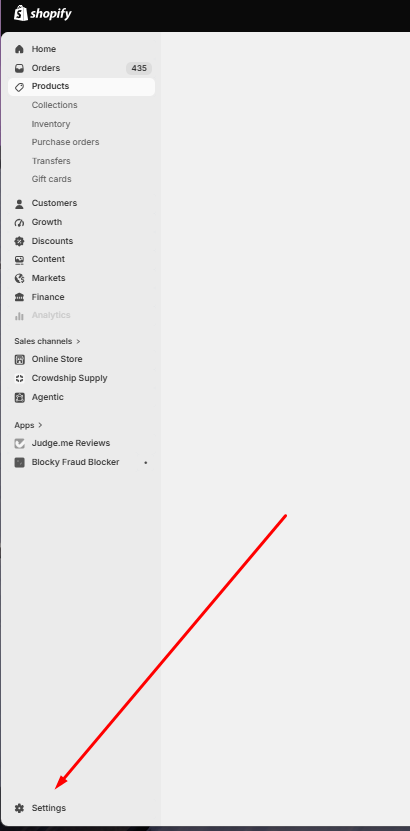
Open Settings
In your Shopify admin sidebar, click Settings at the very bottom.
Shopify admin → Settings -
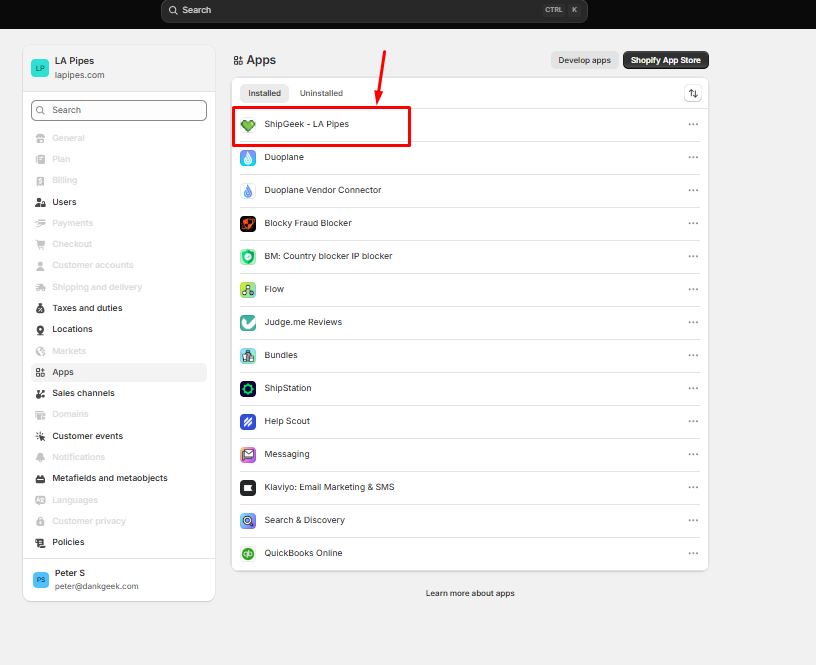
Go to Apps
Find ShipGeek - [Your Store Name] in your list of installed apps and click into it.
Settings → Apps — find your ShipGeek app -
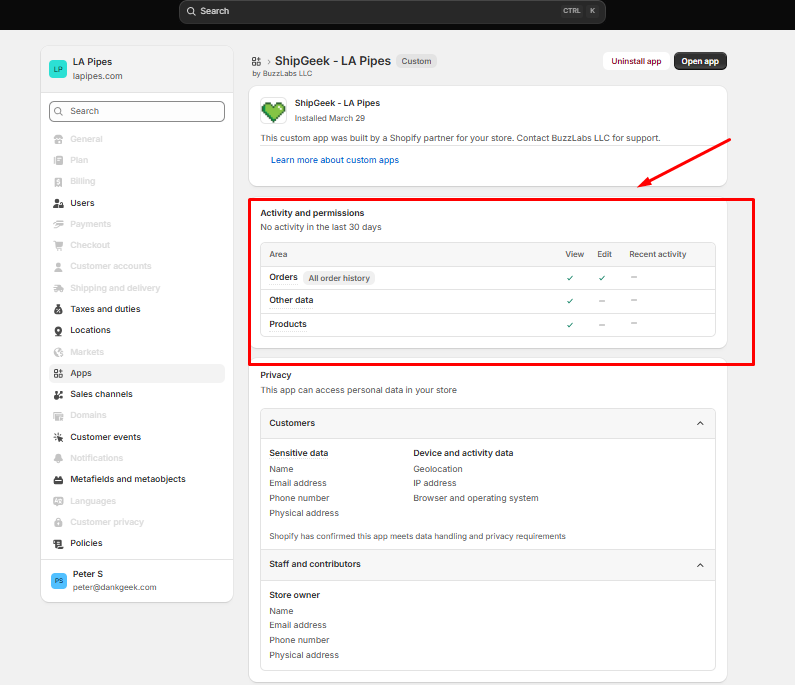
Review Activity and permissions
This section shows exactly what ShipGeek can View or Edit, broken out by Orders, Other data, and Products — plus a Privacy section below it detailing precisely which customer, staff, and store fields the app can access.
ShipGeek app page — Activity and permissions
This view is a good sanity check against the scope-by-scope breakdown below — Edit is only checked for Orders, matching that ShipGeek can modify order data but not products or other store data.
Orders & order editing
read_orders
Read orders, order transactions, fulfillments, and abandoned checkouts from Shopify's default order-access window — generally the last 60 days.
write_orders
Create or modify supported order-related records, including order and fulfillment operations. Also includes the corresponding read access.
read_all_orders
Extends order access beyond the default 60-day window. Works alongside read_orders or write_orders — doesn't grant order access by itself.
write_order_edits
Create and commit edits to existing orders, such as changing quantities or adding/removing line items, subject to Shopify's order-editing restrictions.
These scopes can expose protected customer data contained in orders, though Shopify may redact fields unless the app has the necessary protected-customer-data approval.
Draft orders
read_draft_orders
Read draft orders.
write_draft_orders
Create, update, complete, and delete draft orders where supported. Already includes read access, so requesting both scopes is generally redundant.
Fulfillment orders
Shopify uses "fulfillment orders" to divide an order according to the location or service responsible for fulfillment. All three scopes below are read-only — ShipGeek has visibility across all three categories, but not the corresponding write_*_fulfillment_orders scopes.
read_assigned_fulfillment_orders
Fulfillment orders assigned to locations managed by ShipGeek's own fulfillment service.
read_merchant_managed_fulfillment_orders
Fulfillment orders assigned to locations managed directly by the merchant.
read_third_party_fulfillment_orders
Fulfillment orders assigned to locations managed by other fulfillment-service apps.
Fulfillment-service access
read_fulfillments
Reads fulfillment-service configuration/resources tied to Shopify fulfillment services. Ordinary order-fulfillment records are already covered through order-related access — this scope specifically matters when an app operates as or integrates with a Shopify fulfillment service.
Inventory & locations
read_inventory
Read inventory items and inventory levels, including SKU-linked records and quantities by location.
read_locations
Read store and fulfillment locations.
Neither scope lets ShipGeek adjust inventory quantities or modify locations — that would require write_inventory or write_locations, which aren't requested.
Products
read_products
Read products, variants, collections, SKUs, product options, and related product data.
ShipGeek cannot create, edit, publish, or delete products — write_products isn't requested.
Shipping
read_shipping
Read shipping-related configuration exposed through the applicable APIs, particularly carrier-service info — depending on the API surface, this can include shipping-related country and province data.
This doesn't grant permission to create or modify carrier services — that would require write_shipping.
The short version
ShipGeek can
- Read current and historical orders
- Modify supported order data and perform order edits
- Create and manage draft orders
- Read products, SKUs, inventory levels, and locations
- See fulfillment orders across ShipGeek, merchant, and third-party locations
- Read fulfillment-service and shipping information
ShipGeek cannot
- Modify products
- Adjust inventory
- Modify locations or shipping configuration
- Manage fulfillment orders through the dedicated
write_*_fulfillment_orderspermissions