 ShipGeek Docs
Products
Every product synced from your Shopify store, and where you manage pricing and marketplace visibility for each one.
My Products
Every product synced from your Shopify store shows up in one list, with a search bar and a Refresh button to pull the latest from Shopify.
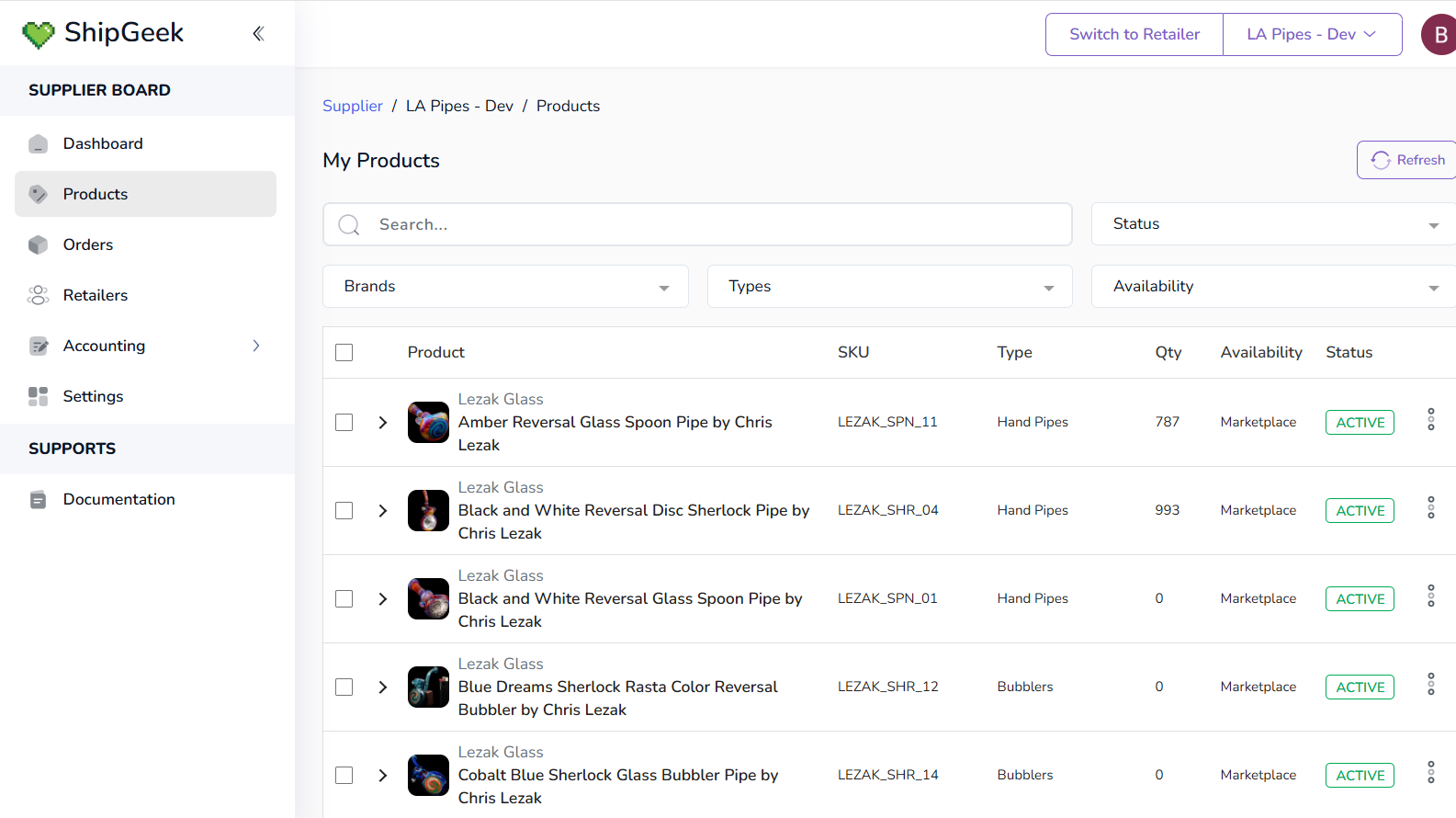
Each row shows: Product (image, brand, name), SKU, Type, Qty, Availability, and Status.
Searching & filtering
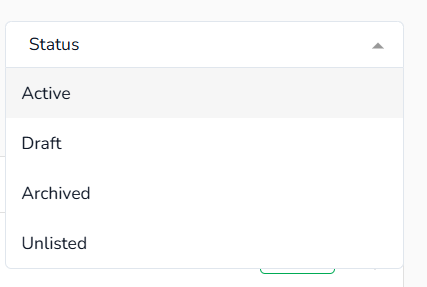
Beyond the search bar, four dropdowns narrow the list down:
Status
Active, Draft, Archived, Unlisted
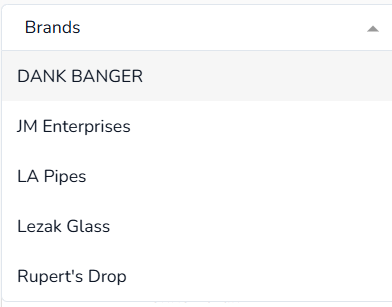
Brands
Every brand you carry — e.g. Dank Banger, JM Enterprises, LA Pipes, Lezak Glass, Rupert's Drop.
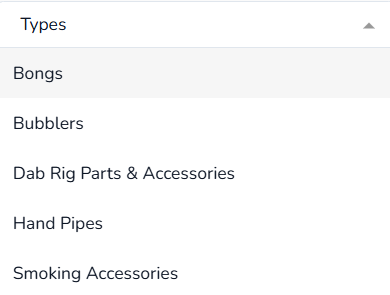
Types
Bongs, Bubblers, Dab Rig Parts & Accessories, Hand Pipes, Smoking Accessories.
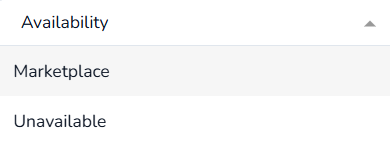
Availability
Marketplace (published to DankGeek) or Unavailable.
Expanding a product
Click the arrow next to any product to expand it and see its variant breakdown right in the list — no need to open the full product page for a quick check.
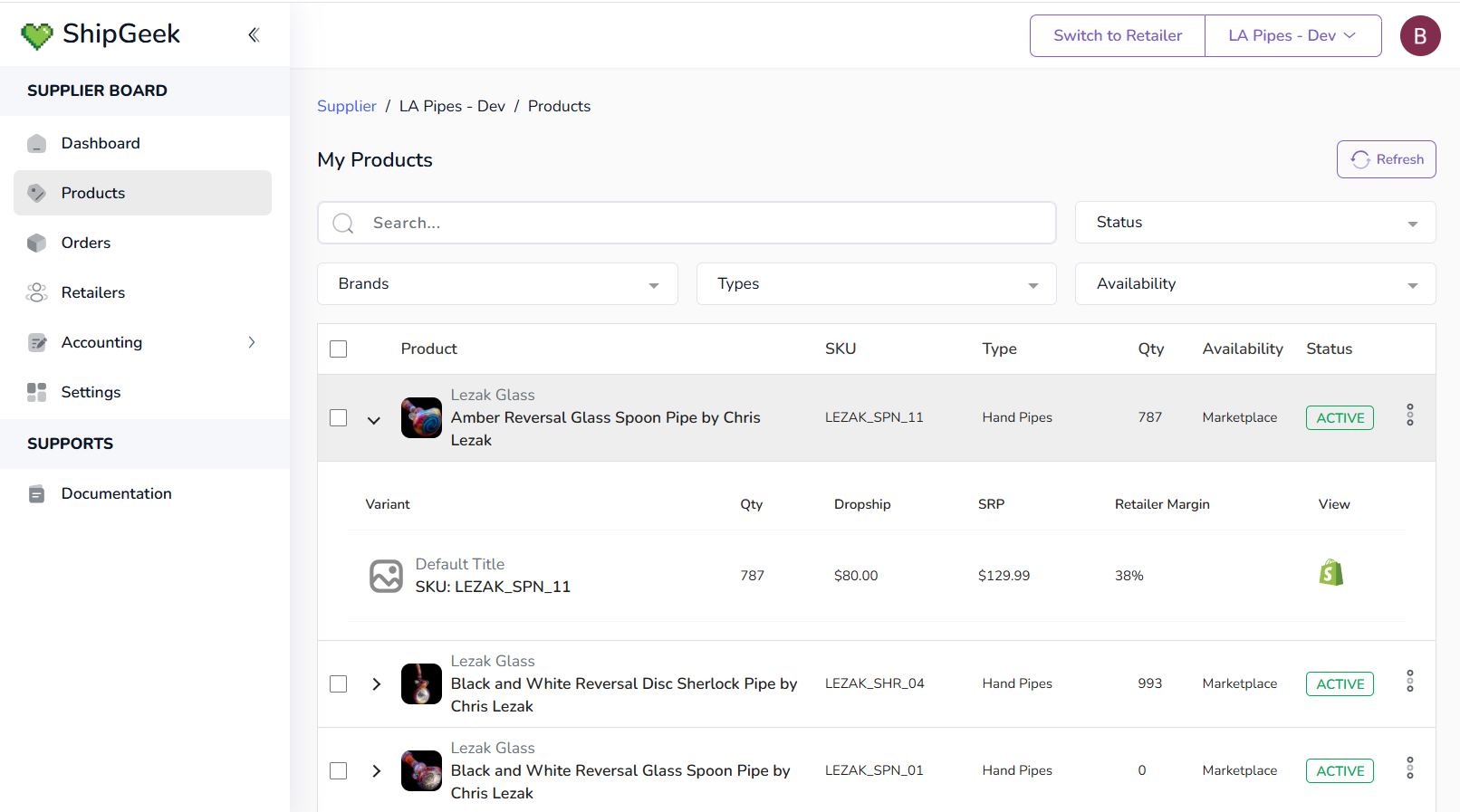
The View column's Shopify icon opens that variant directly in Shopify.
Row actions
The three-dot menu on the right of each row gives you two shortcuts: View product details to open the full ShipGeek product page below, or View in Shopify.

Bulk actions
Select the checkbox next to one or more products and a bar appears with Publish to Marketplace and Unpublish from Marketplace — apply either to every selected product at once.
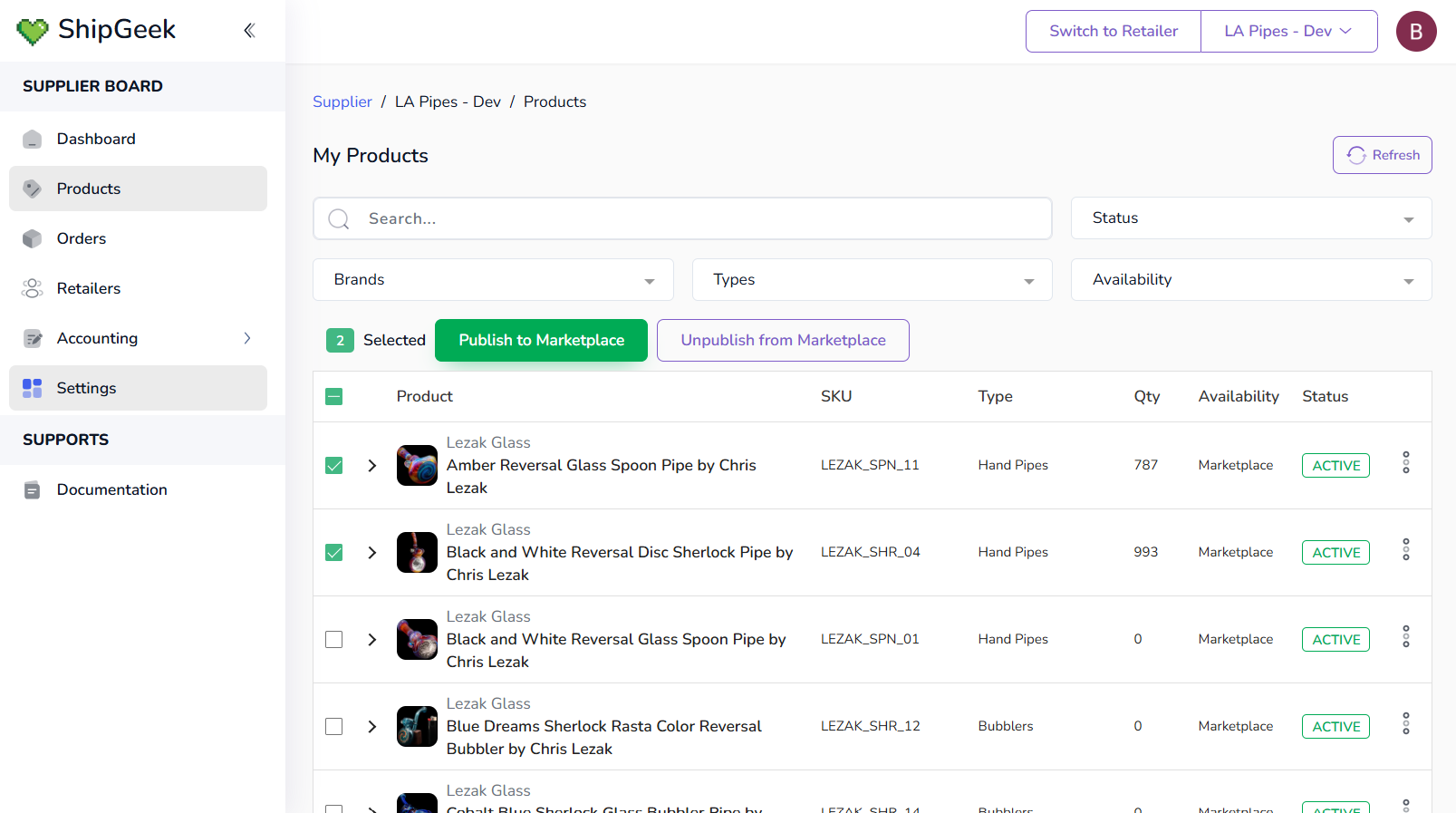
Unpublishing changes that product's Availability column from Marketplace to Unavailable.
The product detail page
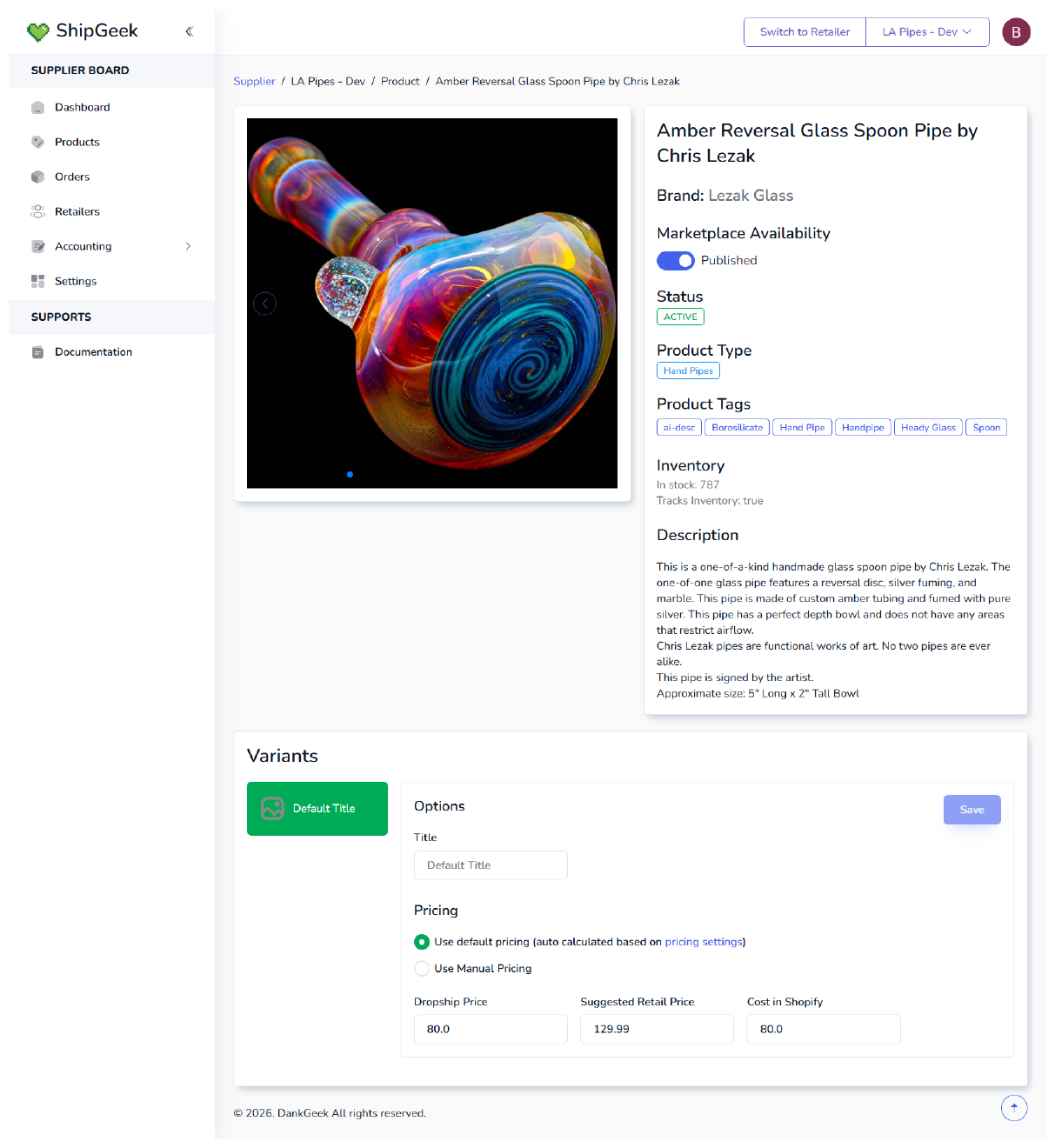
Clicking into a product (or choosing View product details) opens the full page: an image gallery, title, brand, the Marketplace Availability toggle, status, product type, tags, inventory, and description.
This toggle is the second way to control whether a product is visible on DankGeek — the first being the Publish/Unpublish from Marketplace bulk actions above. See Configuring Products for the full first-time publish flow; this page is for ongoing management of a product that's already synced.
The Dashboard's Marketplace Status card also shows how many products are currently published, with a Manage Products shortcut back to this page.
Variants & pricing
Each variant has its own Options (e.g. Title) and pricing:
- Use default pricing — auto-calculated from your pricing settings.
- Use Manual Pricing — set the Dropship Price and Suggested Retail Price yourself, per variant.
Cost in Shopify is shown alongside for reference, and changes are saved with the Save button.