 ShipGeek Docs
Accounting
Create invoices from fulfilled orders and track what's been paid.
Two views: Unpaid Orders & Invoice History
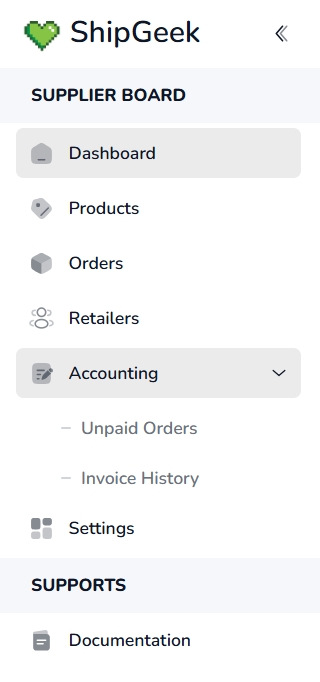
Accounting expands in the sidebar into two pages.
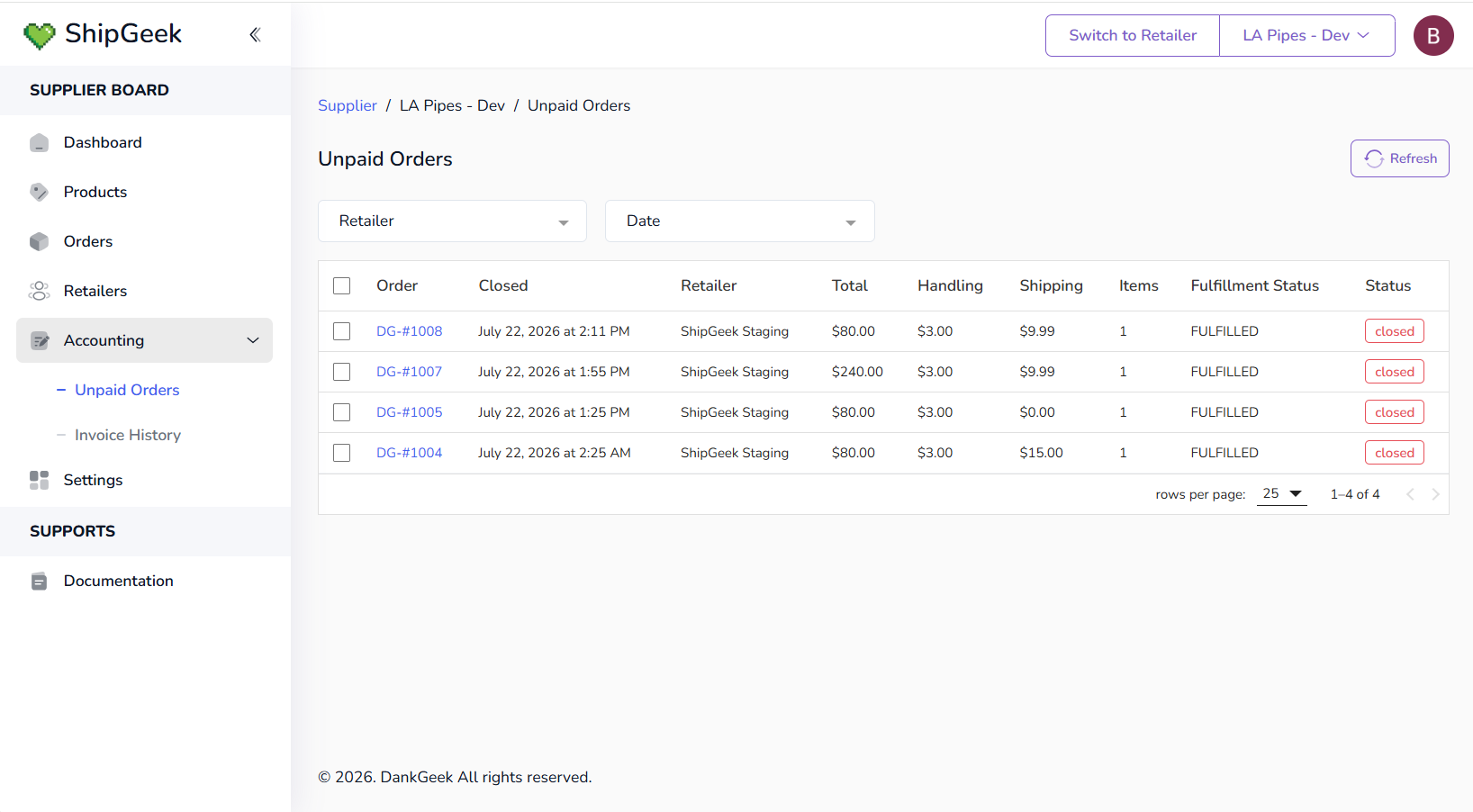
Unpaid Orders
Every fulfilled order that hasn't been invoiced yet, with filters for Retailer and Date.
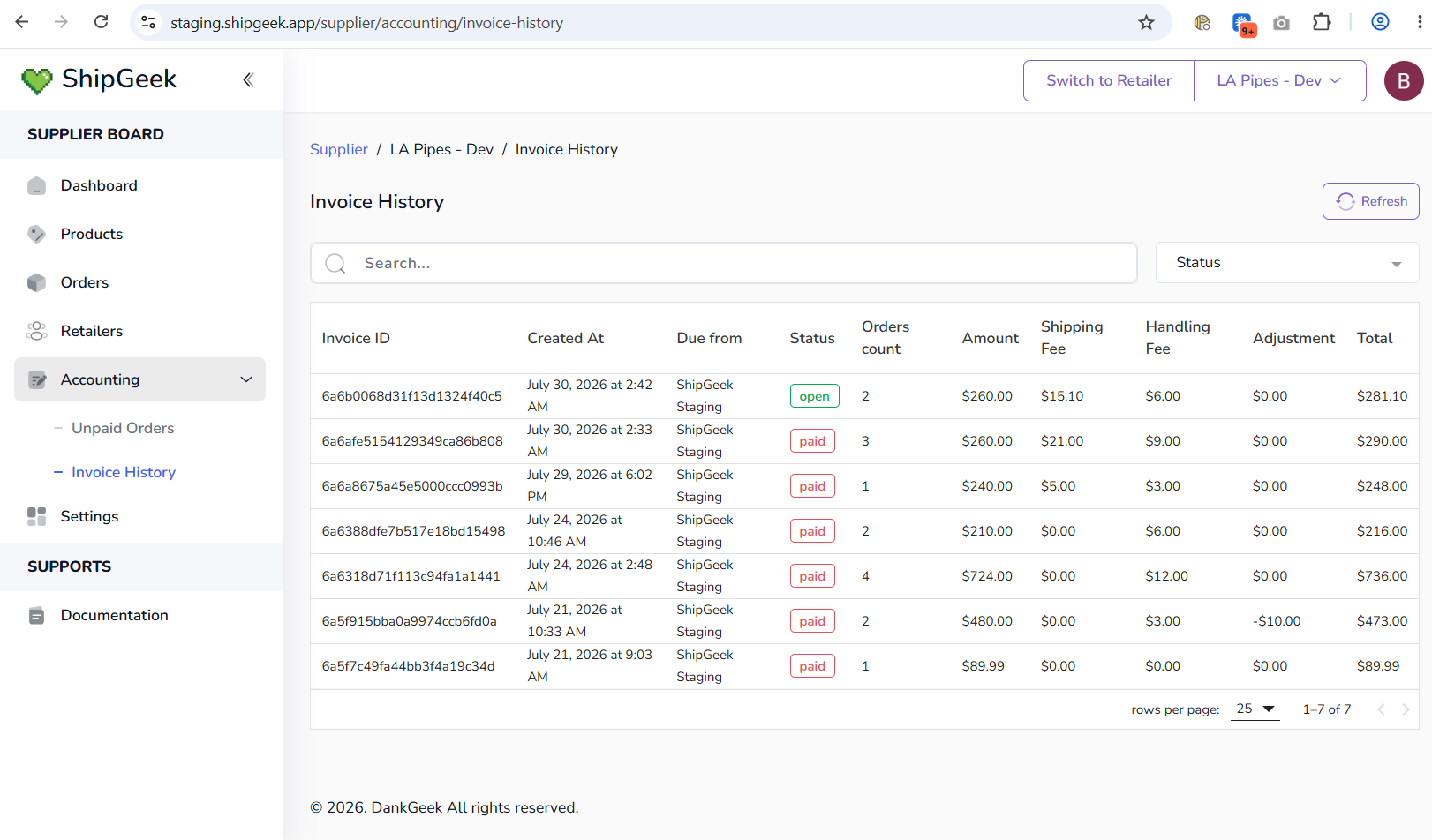
Invoice History
Every invoice you've created, past and present, with search and a Status filter.
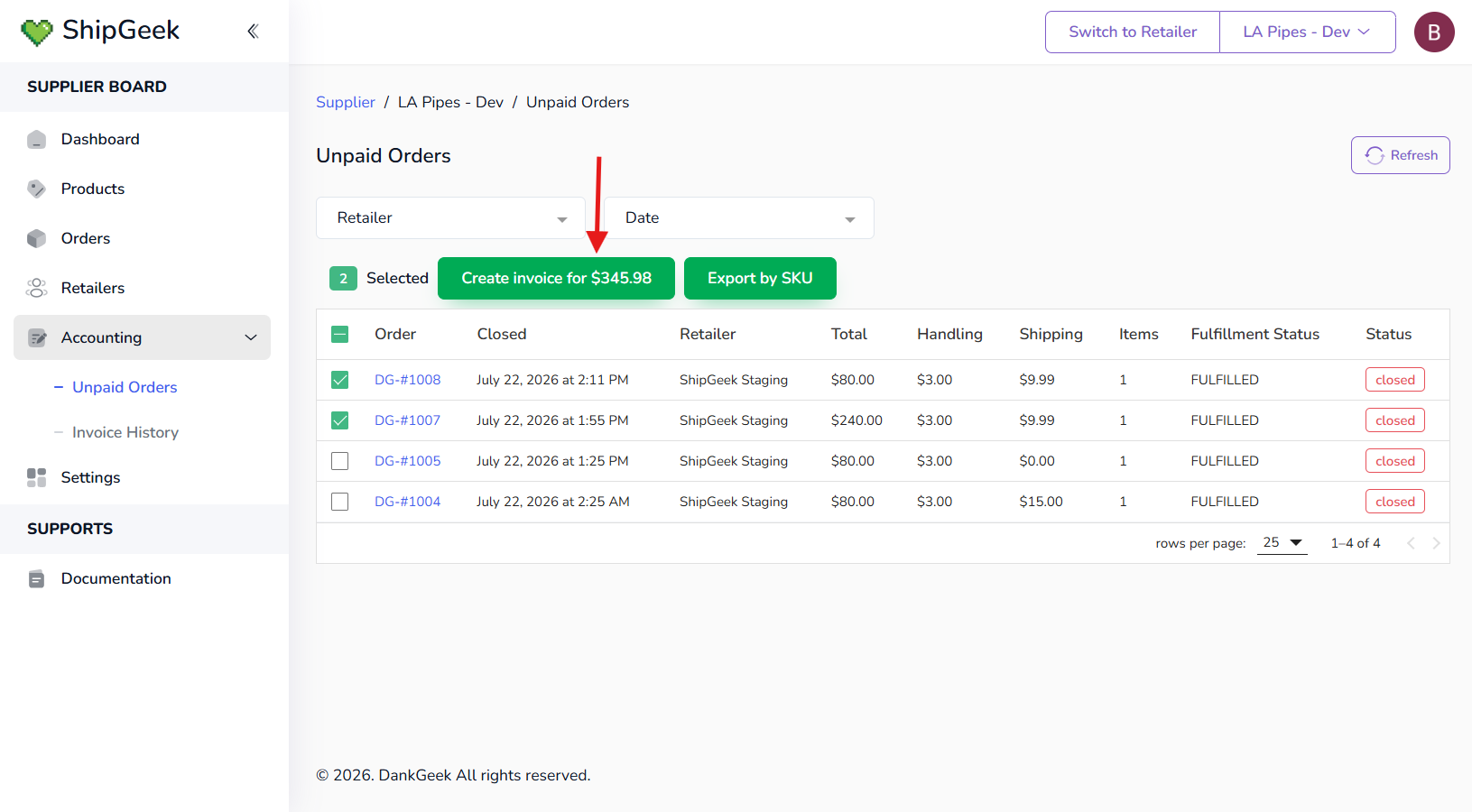
Creating an invoice
From Unpaid Orders, select the orders you want to bill and two options appear: Create invoice for $X.XX (the combined total of everything selected) and Export by SKU.
Adjusting the invoice
Creating an invoice opens a modal with the combined Amount, plus an Adjustment amount and Adjustment reason — use this to credit something back (an item that arrived damaged, was lost in transit, was defective, etc.) before the invoice goes out.
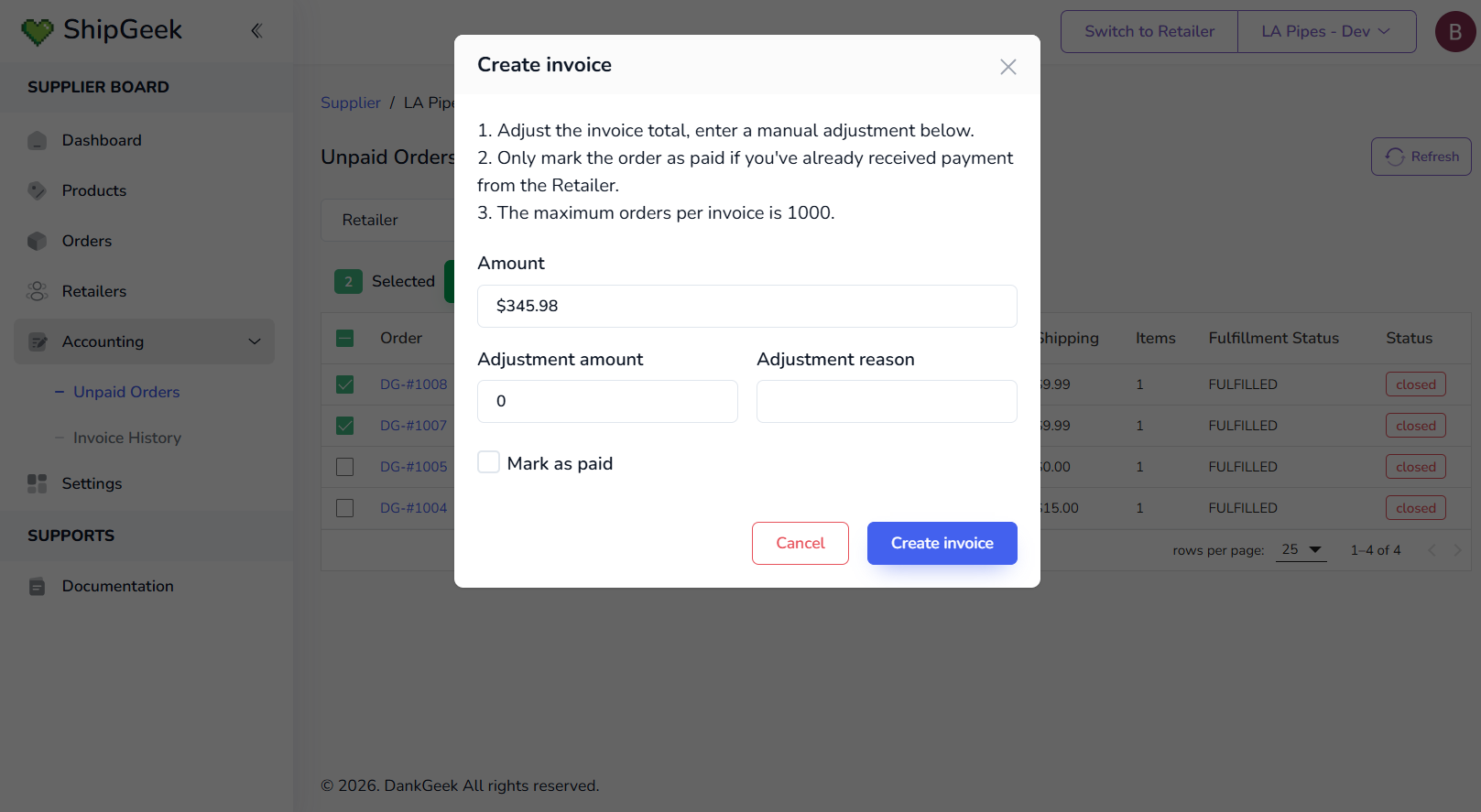
Only check Mark as paid if you've already received payment from the retailer. The maximum orders per invoice is 1000.
The invoice detail page
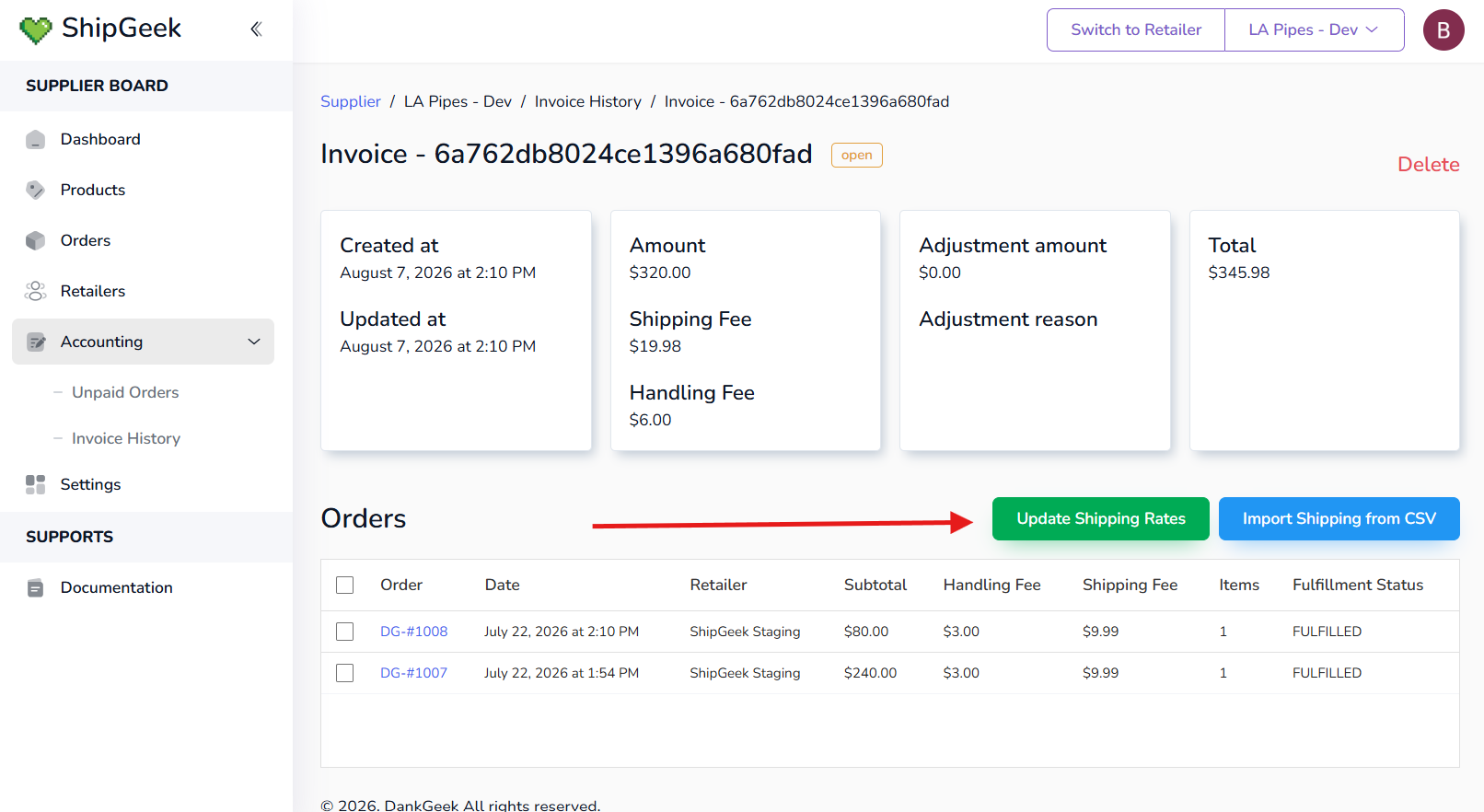
Clicking an invoice from Invoice History opens its detail page: Created at / Updated at, Amount, Shipping Fee, Handling Fee, Adjustment amount / reason, and the Total — plus the invoice's status badge, a Delete link (see below for when that's available), and a list of every order included on it.
Editing shipping on the invoice
ShipGeek pulls shipping data from the supplier's order in Shopify by default. From the invoice detail page, Update Shipping Rates lets you adjust them manually, or Import Shipping from CSV lets you pull in rates from a CSV if you're using a shipping provider other than Shopify's own rates.
After the invoice is created
The new invoice shows up in Invoice History with a status of open.
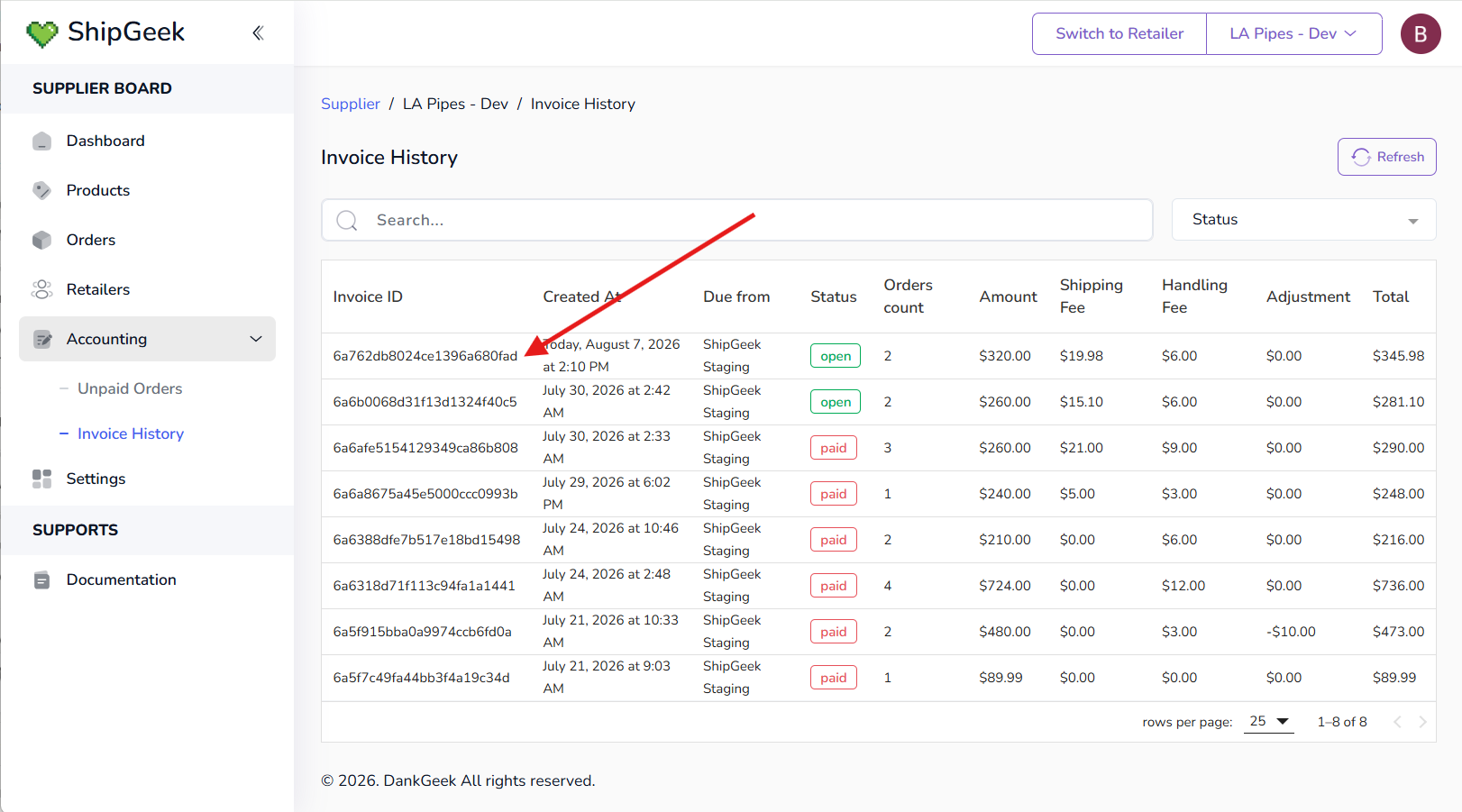
Open means DankGeek has received the invoice. Once payment is sent, it's marked paid automatically — no action needed on your end.
Editing or deleting an invoice
As long as an invoice hasn't been paid yet, you can delete it if you need to make changes — edit shipping, add more orders, etc. — then recreate it.
Tracking from the Dashboard
The Dashboard's Accounting summary shows a running total of unpaid orders and unpaid invoices — this page is where you act on them.