 ShipGeek Docs
Settings
Where your store connection, integrations, and account details live.
Company Profile
Your business details and how ShipGeek contacts you.
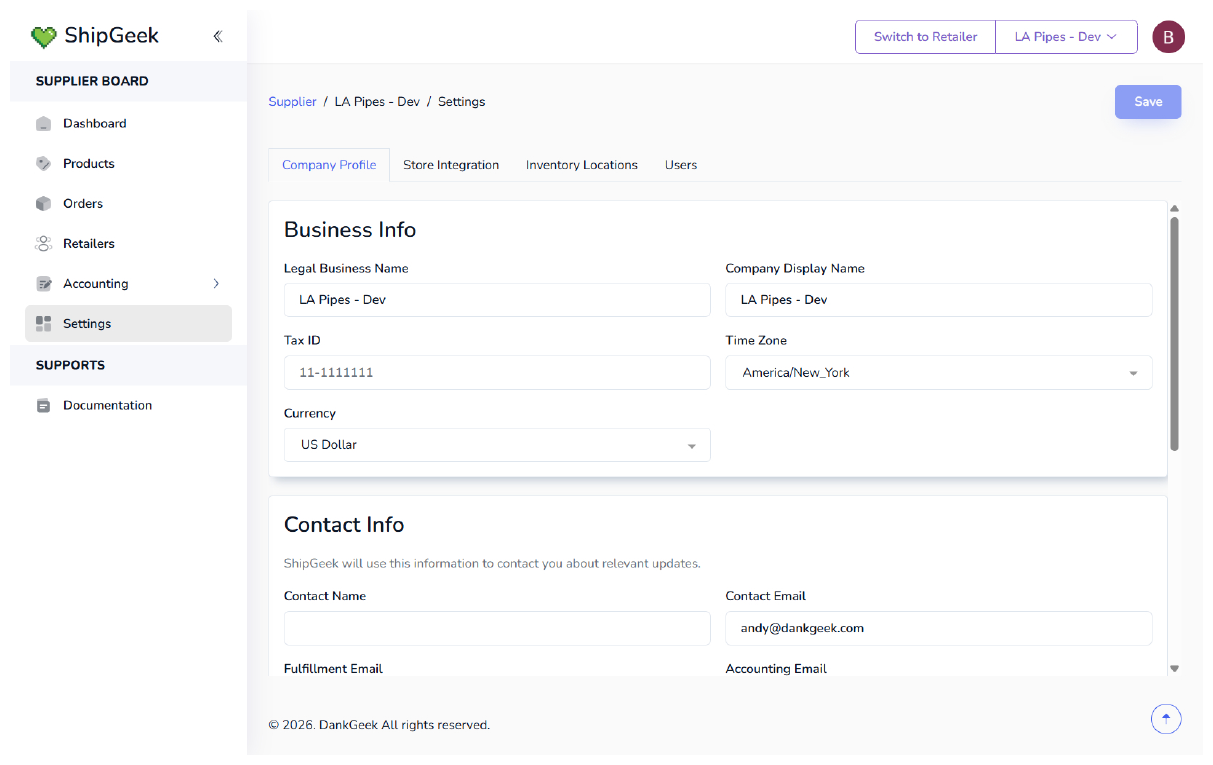
Business Info
Legal Business Name, Company Display Name, Tax ID, Time Zone, Currency.
Contact Info
Contact Name, Contact Email, Fulfillment Email, Accounting Email — ShipGeek uses these to reach you about relevant updates.
Store Integration
Confirms your Shopify store is connected, and controls how ShipGeek handles pricing, orders, and payments coming from that connection.
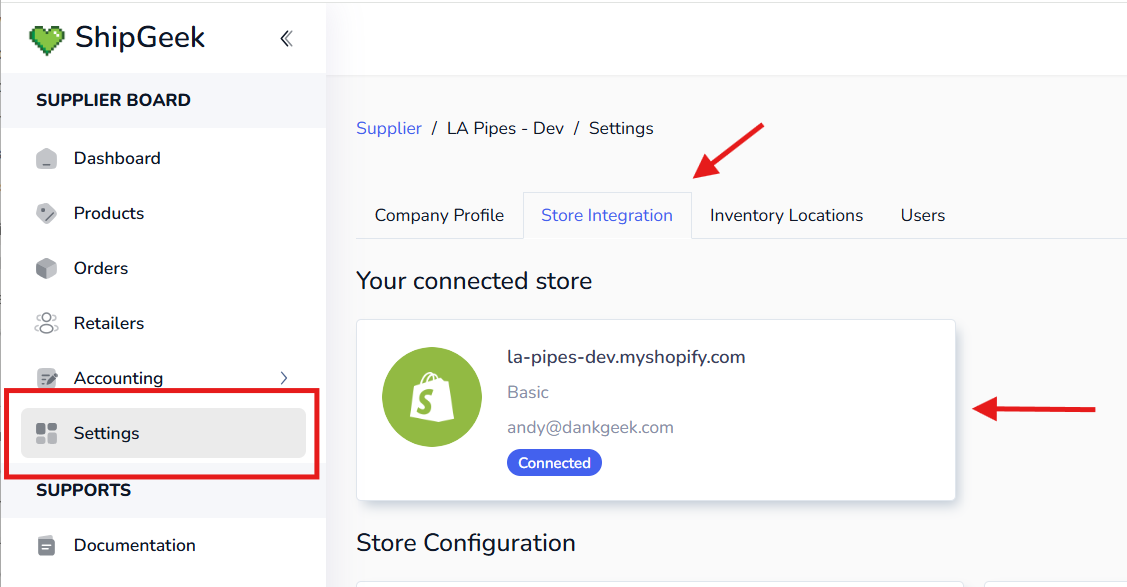
The Manage Integrations shortcut on the Dashboard's Store Status card brings you straight here.
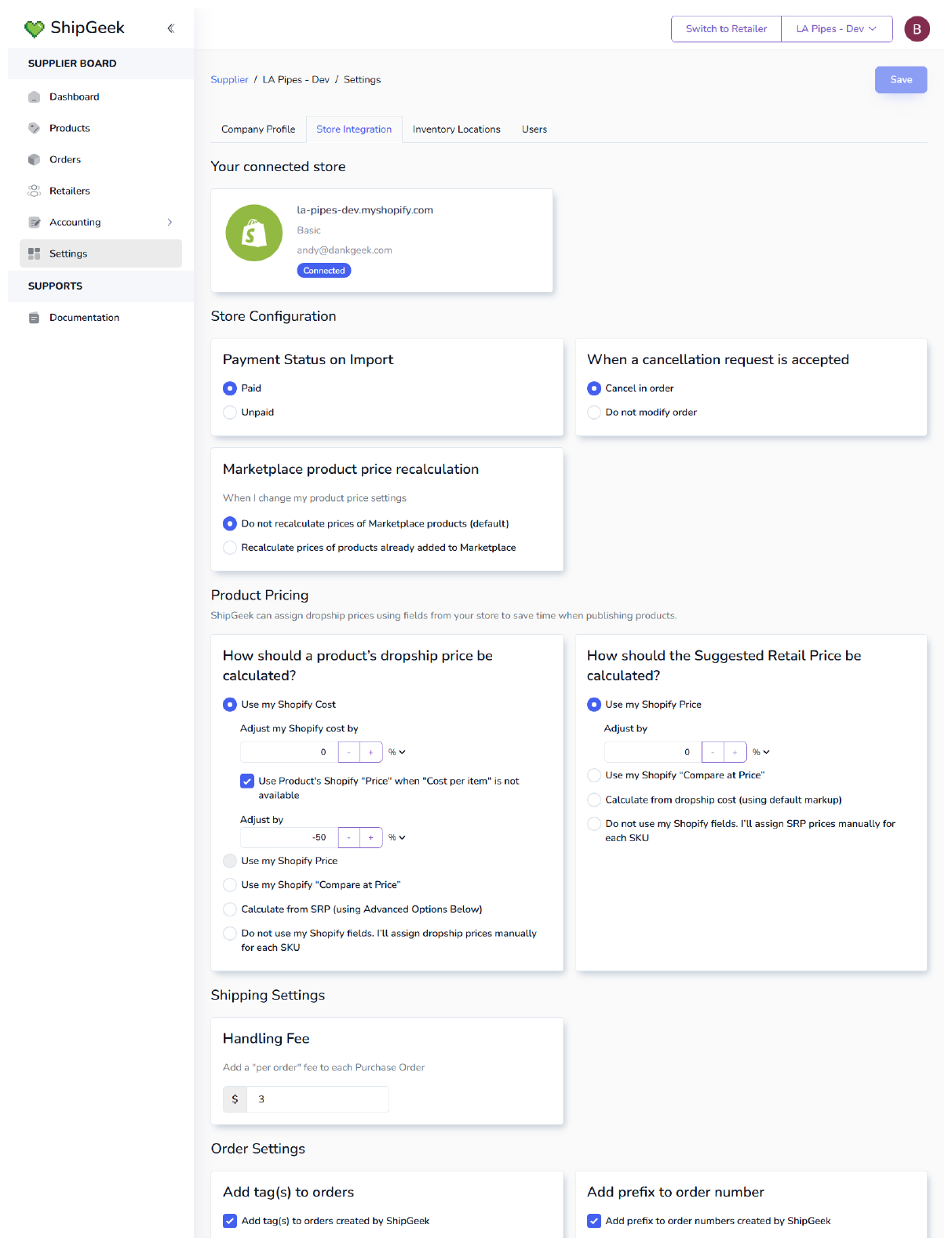
Store Configuration
Payment Status on Import
Whether orders import as Paid or Unpaid.
Cancellation requests
When a cancellation request is accepted: Cancel in order or Do not modify order.
Marketplace product price recalculation
When you change your product price settings: recalculate existing Marketplace products, or leave them as-is (default).
Product Pricing
ShipGeek can assign Dropship prices using fields from your store, to save time when publishing products.
Dropship Price
Calculate from your Shopify cost or price, with an adjustment percentage — or assign Dropship and Suggested Retail Prices manually per SKU.
Suggested Retail Price
Calculate from your Shopify price, compare-at price, or Dropship cost — or assign manually per SKU.
Shipping & Order Settings
Handling Fee
A flat per-order fee added to each Purchase Order.
Order tags & prefix
Optionally add a tag and/or a custom prefix (e.g. DG-) to orders ShipGeek creates in Shopify. Tags set here apply to every order; per-retailer tags set under Retailers stack on top of them.
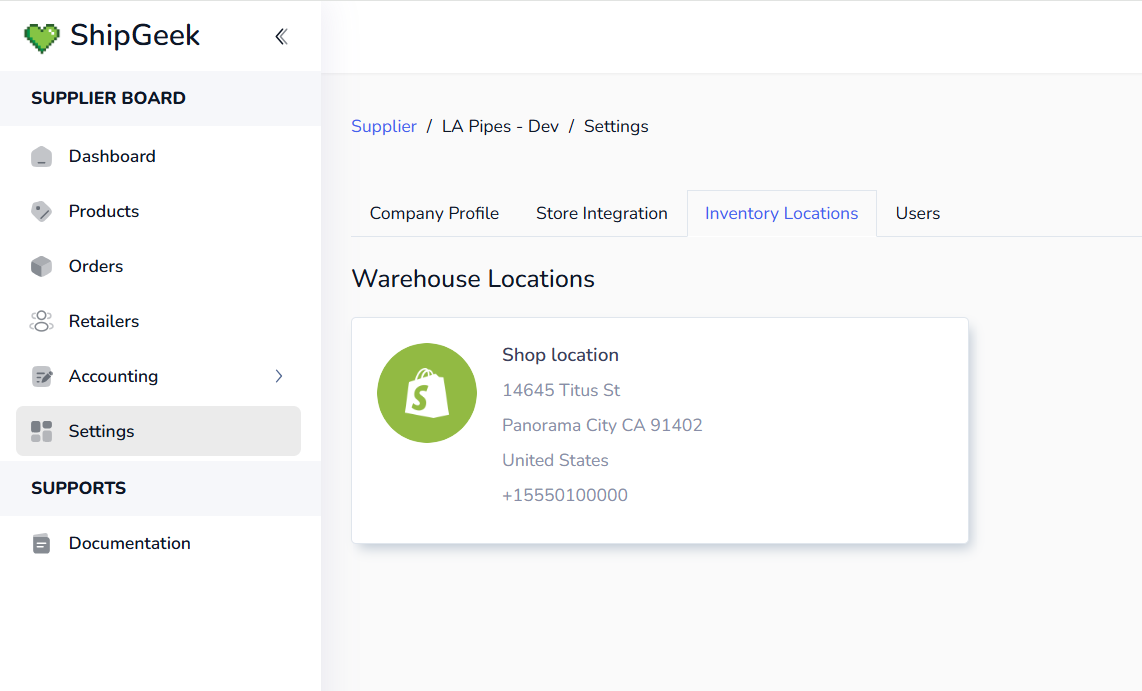
Inventory Locations
The warehouse location(s) ShipGeek pulls stock and shipping details from.
Users
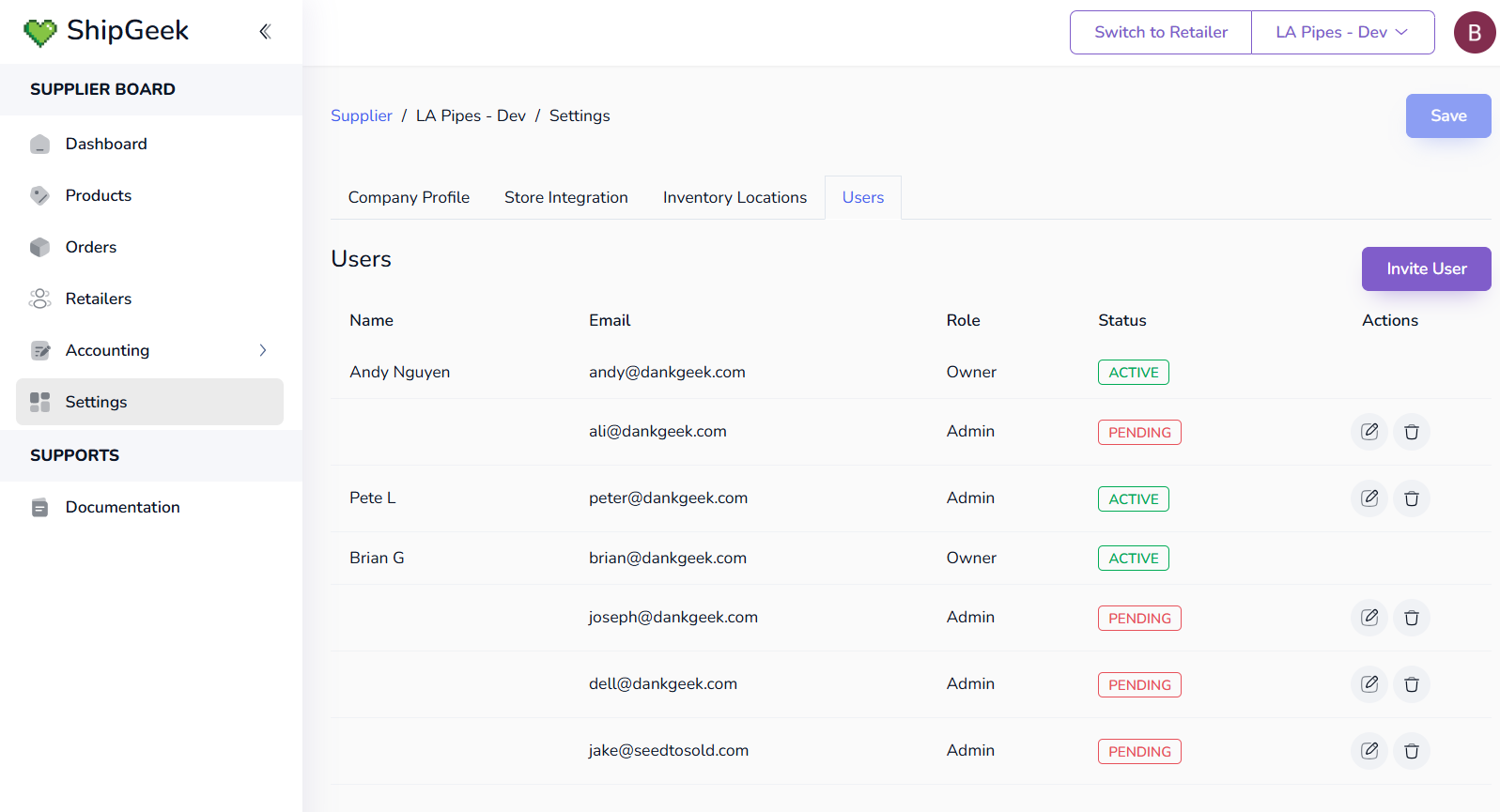
Manage who has access to this supplier account.
Roles
Owner and Admin — the difference is user management: an Owner can add and remove Admins, an Admin can't.
Status
Active once someone's accepted their invite, Pending until then.
Inviting someone
Use Invite User to add a teammate by email. Each row can be edited or removed from Actions.