 ShipGeek Docs
Orders
Where every order placed through DankGeek shows up, and fulfillment runs mostly on its own from here.
How orders arrive
When a retailer places an order for one of your products, it appears in your Shopify store as usual — no separate order entry in ShipGeek.
Fulfilling an order
-
Fulfill it in Shopify
Action neededUse your existing fulfillment process — pack and ship exactly as you already do.
-
ShipGeek picks up the update
AutomaticTracking and status sync into ShipGeek automatically — no manual syncing.
The Orders list
Every order synced from your Shopify store, with a search bar and a Refresh button to pull in anything that hasn't synced yet.
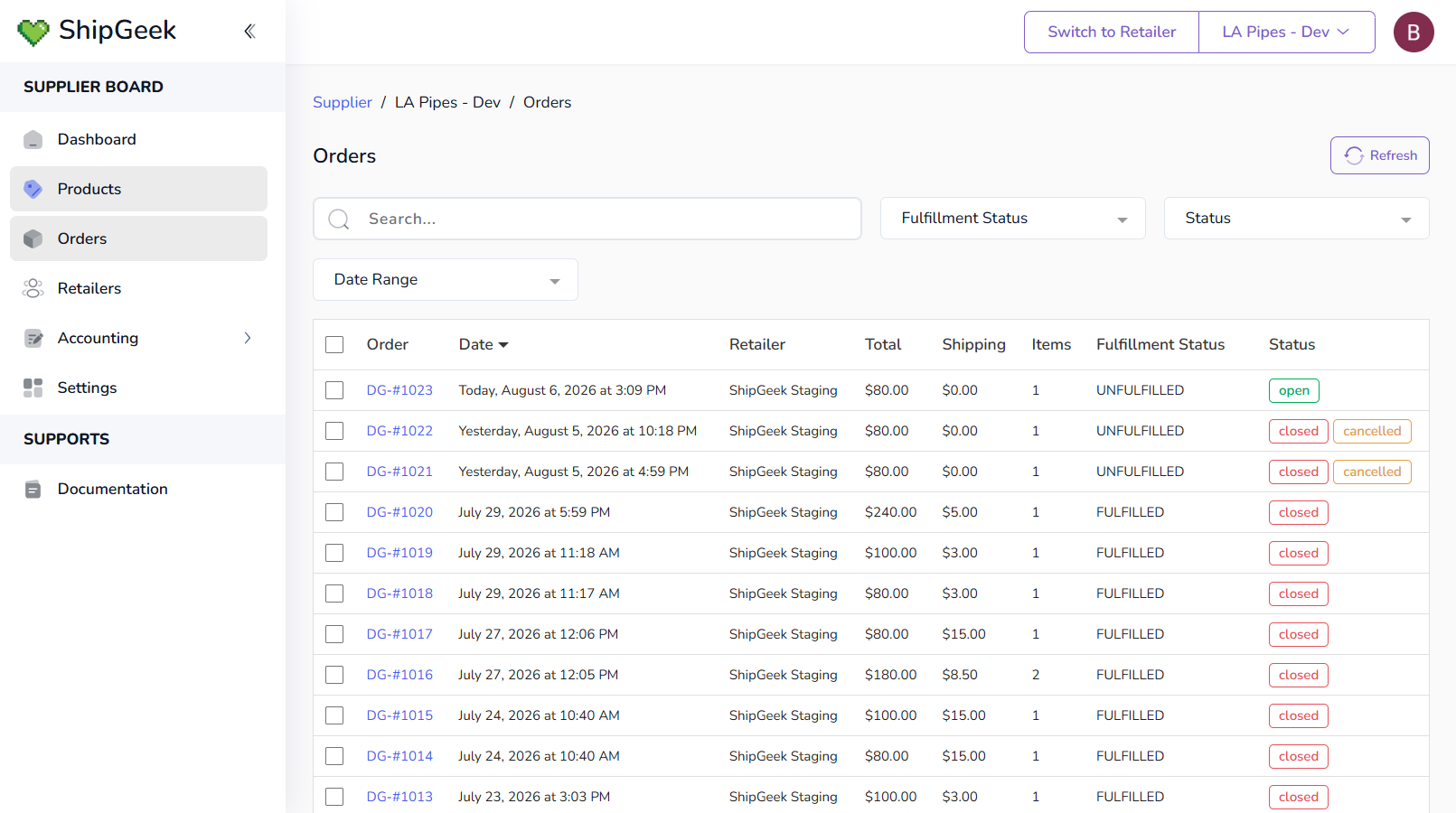
Each row shows: Order number, Date, Retailer, Total, Shipping, Items, Fulfillment Status (Shopify's own UNFULFILLED/FULFILLED), and Status (ShipGeek's own tracking — see below).
Filters & search
Fulfillment Status
Filter by Shopify's fulfillment state — unfulfilled or fulfilled.
Status
Filter by ShipGeek's status — open, closed, or cancelled.
Date Range
Narrow the list to a specific window of time.
Order statuses
ShipGeek's Status column tracks where an order stands independently of Shopify's fulfillment state:
Open
New and unfulfilled in Shopify — nothing's shipped yet.
Closed
Fulfilled in Shopify, and ShipGeek has picked up the update.
Cancelled
The order was cancelled — reflected here automatically.
In short: mark it fulfilled in Shopify and it shows closed here; cancel it and it shows cancelled here; leave it alone and it stays open here.
Viewing an order
Click into any order to see the full breakdown: line items with cost, quantity, total, shipped count, and tracking; a Totals panel (Subtotal, Shipping, Handling Fee, Total); and the customer's name and shipping address.
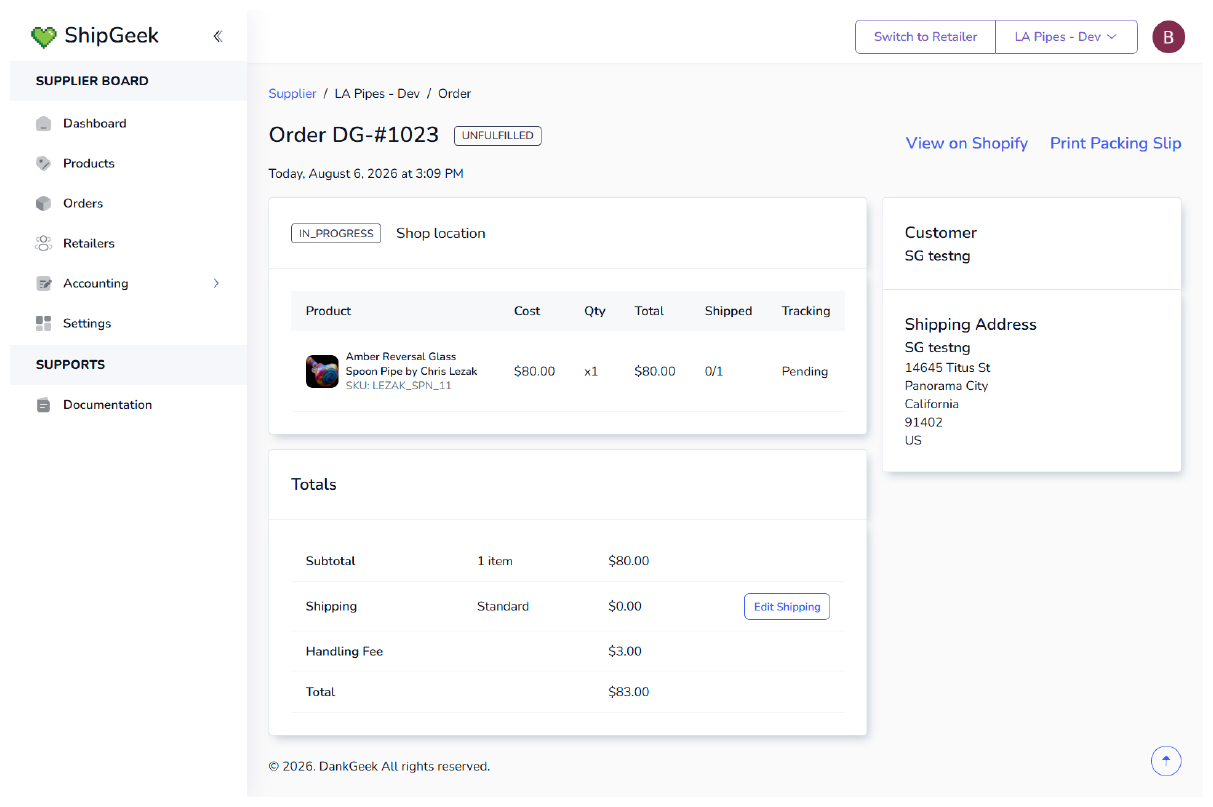
From here you can View on Shopify to jump straight to the order there, or Print Packing Slip for just this order.
Editing shipping
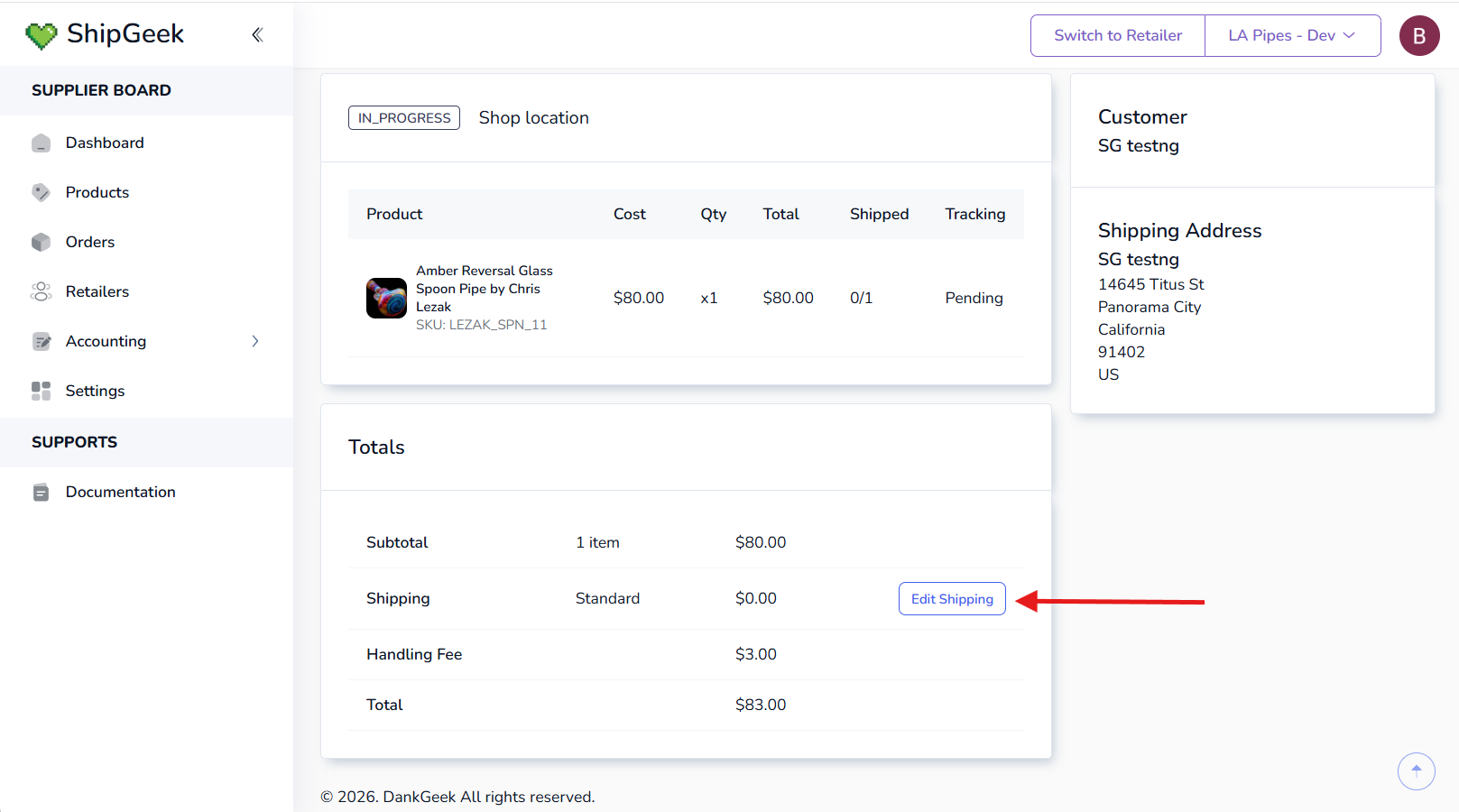
Click Edit Shipping next to the Shipping line in Totals to open the shipping method picker.
Choose Standard or Express at their preset rates, or select Custom shipping rate to set your own shipping title and price.
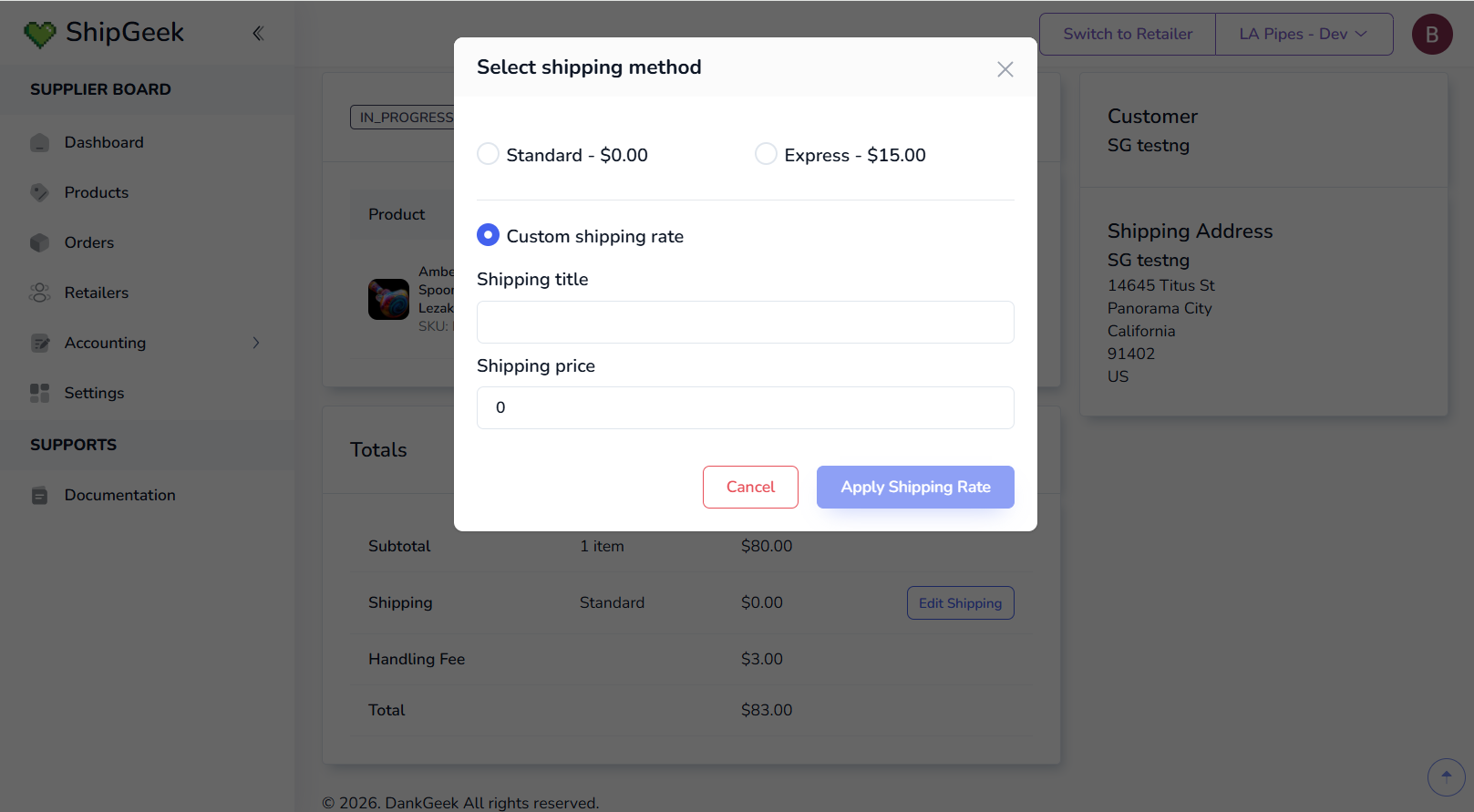
Whatever you set here populates the Shipping line item's amount on the order.
Bulk actions
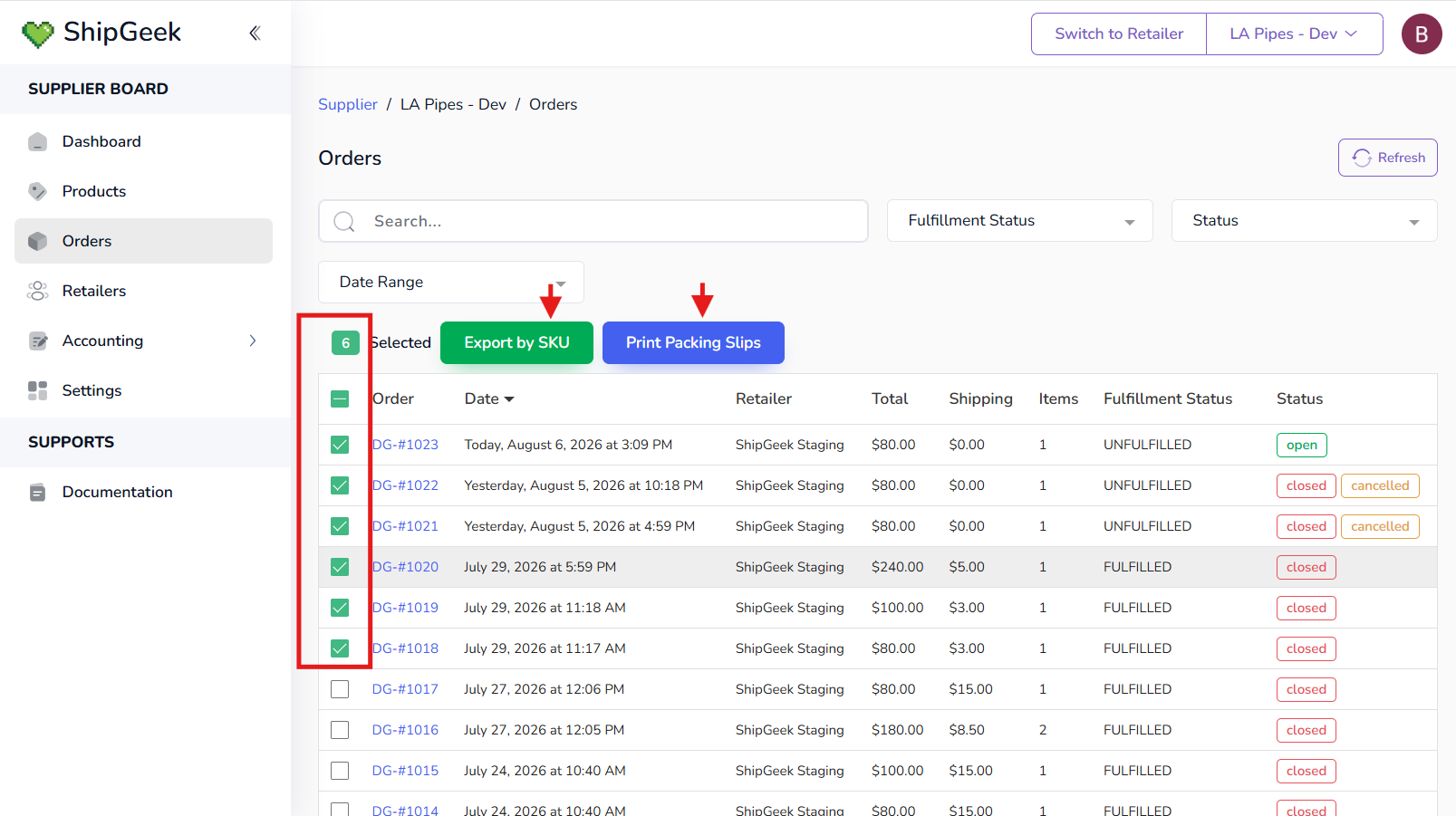
Select multiple orders via checkbox and a bar appears with two options: Export by SKU (download the selected orders' data as a CSV) and Print Packing Slips (print packing slips for every selected order at once).
About the order prefix
If no prefix is set, orders show up exactly as they appear in your Shopify store. Adding a prefix under Settings → Store Integration → Order Settings makes it easy to tell orders that came in from DankGeek apart from the rest of your Shopify orders.
Only closed & fulfilled orders can be invoiced — see Accounting once an order's ready to bill.