 ShipGeek Docs
Retailers
Every retailer you currently supply, and the per-retailer integration settings attached to each one.
The Retailers list
This page lists the retailers you're a supplier for. For most suppliers that's a single row — DankGeek — since DankGeek is the marketplace your products are published to.
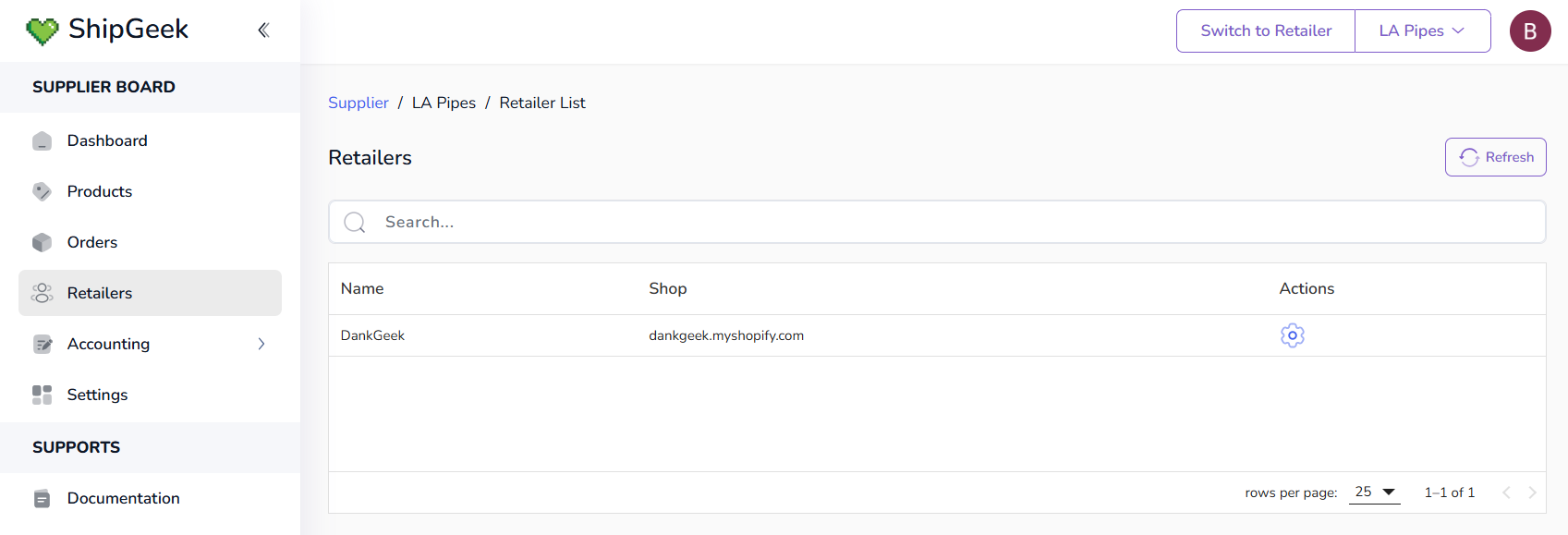
Each row shows three things:
Name
The retailer's name — e.g. DankGeek.
Shop
That retailer's Shopify domain — e.g. dankgeek.myshopify.com.
Actions
A gear icon that opens the retailer's settings — see below.
A Search bar and a Refresh button sit above the table, and the usual rows-per-page control sits below it — both really only come into play once you supply more than one retailer.
Path: shipgeek.app/supplier/retailers
The Dashboard's Retailers Connected figure under Store Growth counts the retailers listed here.
Retailer settings
Clicking the gear icon in the Actions column opens that retailer's Shopify Integration Settings — two optional fields that control how this retailer's orders land in your Shopify store.
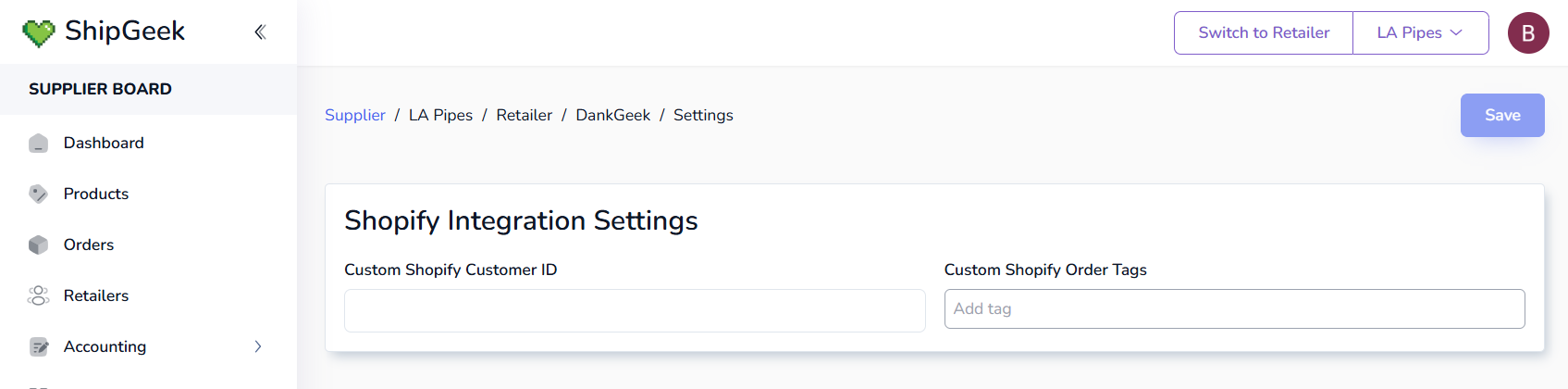
Custom Shopify Customer ID
The numeric ID of a customer record in your own Shopify store. Every order ShipGeek imports for this retailer gets attributed to that customer, so all of their orders roll up under a single customer record instead of creating a new customer each time.
In the example below, the LA Pipes store has a Dank Geek customer, and that customer's ID — 4425755164831 — goes in the field.
Custom Shopify Order Tags
Tags applied in Shopify to every order imported for this retailer. Type a tag into Add tag and it becomes a chip you can remove with its ×. Here, orders from DankGeek are tagged dropship and dankgeek.

Changes are saved with the Save button at the top right.
What this looks like on the order
Open one of those imported orders in your Shopify admin and both settings are visible on it:
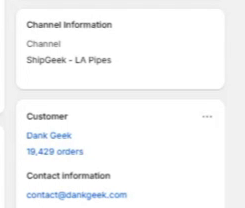
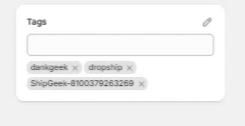
Alongside your own tags, ShipGeek adds a ShipGeek-<order ID> tag automatically. The order's Channel Information also shows it came from ShipGeek - [Your Store Name].
The two tag settings work the same way and stack — a tag set here, and a tag set account-wide under Settings → Store Integration → Order Settings, will both show up on this retailer's orders. Use this page for tags that only make sense for one retailer, and Settings for tags you want on everything.